Giving a Dead Meta Portal a Second Life as a Local Voice Assistant

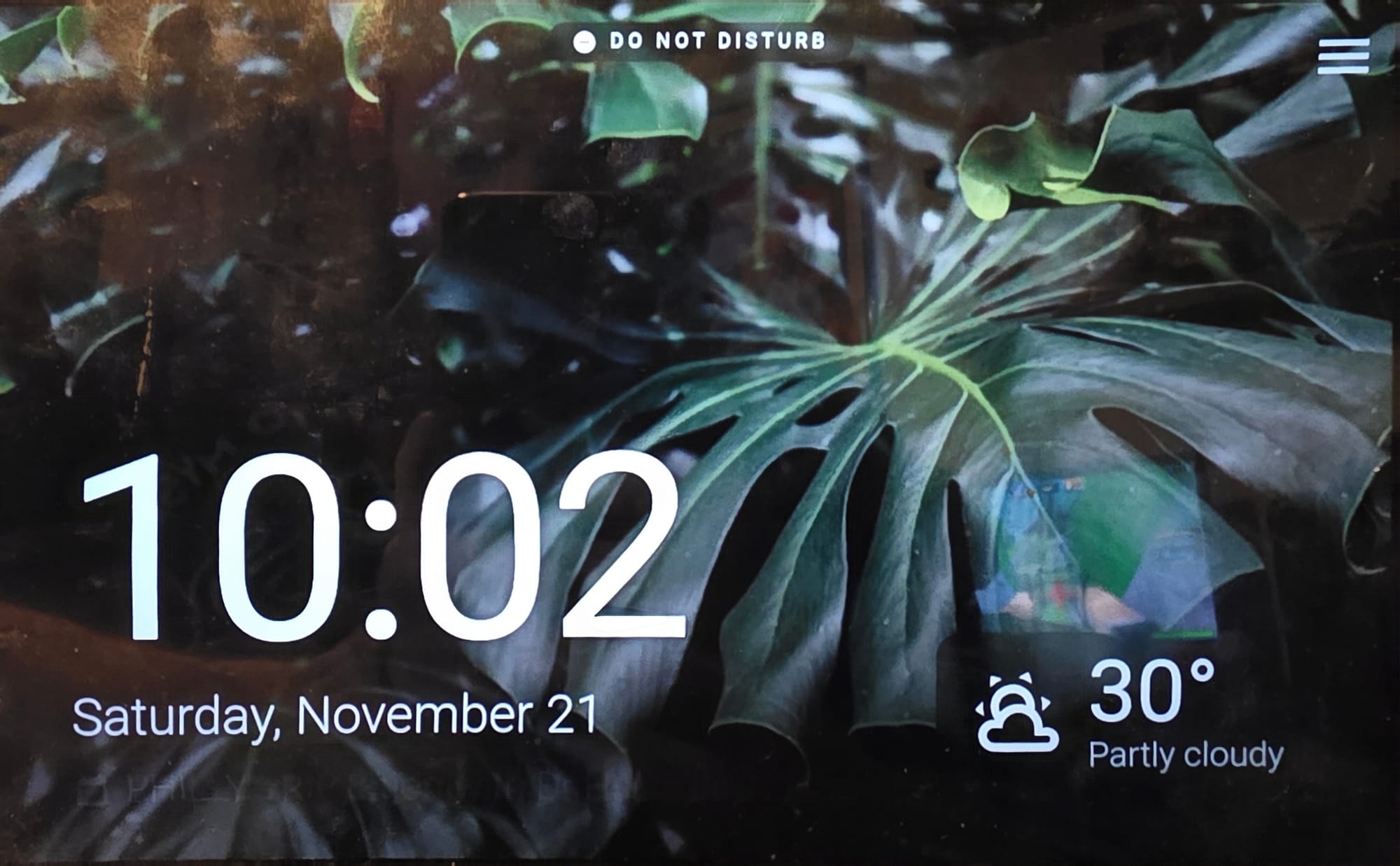
A few years back, Meta killed off the Portal line and, more recently, pulled the plug on the backend that made them useful at all. What's left is a genuinely nice piece of hardware (touchscreen, decent speaker, a mic array good enough to pick up a wake word across a room) bricked down to a photo frame because the company that made it lost interest. I had one sitting in a drawer and decided to see how far I could get turning it into something closer to a local Nest Hub: wake word, a dashboard, and a conversational agent that actually runs my hardware, not Meta's servers (which, again, don't exist anymore for this device).
Short answer: all the way. It's sitting on the counter right now, wakes up on its name, shows a dashboard, and answers back with a model running on a GPU box in the next room. No cloud, no account, no app that still thinks it's 2021.
This post is the overview. I wrote up the full, copy-pasteable steps as a companion repo on GitHub rather than cram every command into a blog post. This one's for the "how does this actually fit together" version, with the gotchas that actually cost me time.
The pieces
- portal-root-kiosk-satellite for a handful of persistent root tweaks: permanent wireless ADB being the big one, since stock firmware turns network debugging off on every reboot.
- View Assist Companion App (VACA) as the actual satellite app on the device: on-device wake word, a media player, a browser view, paired with View Assist for the dashboard itself.
- Home Assistant's Assist pipeline doing wake word → speech-to-text → conversation agent → text-to-speech.
- Ollama, running a 12B model with a custom persona layered on top via a
Modelfile, as the conversation agent, with Home Assistant's own tool-calling wired in so it can actually check or change the state of the house instead of just talking about it. - Piper, GPU-accelerated, for the voice coming back out of the speaker.
None of this is new tech individually. The interesting part was getting all of it to hang together on hardware Meta explicitly stopped supporting, fast enough that it doesn't feel like talking to a 2019 smart speaker.
Rooting a dead-end Android tablet
The Portal runs Android 10 under the hood, locked down the way any commercial device is. portal-root-kiosk-satellite uses a timed kernel exploit during a controlled reboot to flip a short list of settings that are otherwise out of reach, then hands the device back in normal enforcing mode. It's not a persistent root shell sitting open; it's a surgical window, used once, to install things like:
- Persistent wireless ADB on port 5555, surviving reboots
- Non-expiring ADB authorization, so I don't have to re-approve my laptop every few days
- A watchdog that disables the stock hardware echo-cancellation tuning, which otherwise actively fights the wake-word engine
- ~200 disabled background components tied to Meta's now-dead backend (bug reporting, telemetry, push notifications, the works)
- Removal of the local Meta accounts entirely, since they're useless without a backend to talk to
- Blocking Meta's own remote-wipe receivers
- Switching DNS from Android's opportunistic Private DNS to whatever my router hands out (more on why in a minute)
Credit where it's due: the actual exploit engineering is Xavier Larrea's project, not mine. What I'm sharing is the specific path through it for this goal, plus what actually happened when I ran it.
And what actually happened was: it failed twice before it worked. Both failures were the same thing: the tool pulls a diagnostic bug report off the device to work out the kernel's memory layout, that bug-report archive occasionally doesn't finish writing before the connection drops, and the tool reboots the Portal to try again clean. Nothing was broken by this; each failed attempt just resets to an unmodified state and tries once more. Attempt three got further, attempt four stuck the landing, and then it ran its own two-reboot verification pass to prove the changes actually survived a cold boot rather than just looking right in the moment.
If you're trying this yourself and see the device reboot on you more than once before anything sticks: that's the tool working as designed, not you breaking something. Keep reconnecting ADB after each reboot and let it keep trying.
Turning the screen into a satellite
This is the step I'd flag as the one most likely to trip people up, more than the root exploit even, not because it's hard but because it's two separate Home Assistant integrations plus an app, and the two integrations are easy to confuse with each other since they share half a name.
- View Assist Companion App (VACA) is the Android app that actually runs on the Portal, plus its own Home Assistant integration that pairs with it. This is what gives you on-device wake word, a media player, and a browser view. No audio leaves the device at all until the wake word actually fires.
- View Assist is a different integration that owns the dashboard: the clock screen, the different views, switching between them on command, and needs a display device under it to show anything on. VACA is what provides that display device.
The order that actually works: install the VACA integration through HACS first, restart Home Assistant, then install the VACA app on the Portal. On first launch it sits on a blue "waiting for connection" screen showing its own IP and port. Go find the device under Settings → Devices & services in Home Assistant (it shows up discovered via mDNS almost immediately on my network) and confirm it. The Portal plays a little welcome chime, the blue screen flips to the Home Assistant login page, and once you log in on the device itself, you've got a working satellite showing the stock HA dashboard.
Only at that point do you go add the View Assist integration and point its satellite-creation wizard at the VACA entities it just created: microphone, media player, display, all from a dropdown. Do this before you've logged VACA in and it won't find anything to pick. Do VACA's app install before its integration and you'll get the exact same "device just sits there, won't show up anywhere" feeling and have no idea why. I had both of these happen to me in the first twenty minutes before I actually read the project's own install notes properly, which, in fairness, say almost exactly this.
One more: VACA pulls its connection URL for the dashboard from Home Assistant's own Settings → System → Network → Local network setting, not from anything you type into the app itself. If that's pointed at a public hostname your router can't hairpin back to itself (a genuinely common consumer-router limitation), the device either can't log in at all or shows a 404 where the dashboard should be. Point that setting at your Home Assistant instance's actual LAN IP and this whole class of problem just goes away.
Giving it a brain
This is the part I actually spent the most time tuning. Home Assistant's Ollama integration lets you point a conversation agent at any model Ollama can run, and lets that agent call Home Assistant's own tools (turn things on, check a lock, set a timer) if you flip "Control Home Assistant" on in its settings. I built mine on gemma4:12b-it-q4_K_M, with a short system prompt giving it a name and a personality, layered on with a Modelfile:
FROM gemma4:12b-it-q4_K_M
PARAMETER num_predict 400

SYSTEM """
You are a calm, concise AI assistant for a smart home.
Keep spoken replies short, you're speaking out loud through a
smart display, not writing an email.
Use the tools you're given to check or change the actual state of
the house rather than guessing.
Today is {{ now().strftime('%A, %B %-d, %Y') }}.
"""
The detail that mattered more than I expected: put anything that changes often, like the date, at the very end of the prompt, not the beginning. Ollama caches everything it's already processed up to the point where the prompt changes. Stick a changing value near the top and the model re-processes the entire prompt from scratch on every single turn instead of just your new message, which, in practice, was the difference between a reply starting in a second and one taking several.
That tuning mattered because of a constraint I didn't fully appreciate going in: most Assist satellite apps, VACA included, give up and stop listening again if a full round trip, wake word to spoken reply, runs past about 20 seconds. Blow through that and the mic just doesn't reopen, which looks exactly like a bug and isn't one. Fixing it was three things together: the prompt-ordering trick above, a GPU-accelerated Piper instead of CPU (next section), and picking a model size my GPU could actually start answering with inside a second or two.
Making it sound decent, fast
Piper on CPU works, and honestly for a lot of setups it's fine: it's a small model. But with a 20-second budget and an LLM eating a chunk of it, I wanted TTS to be a rounding error, not a line item. I run Piper on a Docker host with an RTX 3060 using onnxruntime-gpu, which gets typical replies synthesizing in under a second once the voice is loaded.
The trap here, and it's a nasty one because it fails silently: onnxruntime-gpu needs a specific matching CUDA/cuDNN version, and if it doesn't get one, it just quietly falls back to CPU. No error, no warning in the obvious place; Piper just runs several times slower than it should and you won't know why unless you go looking at nvidia-smi while it's talking. onnxruntime-gpu==1.32.0 wants CUDA 13 and cuDNN 9 specifically; get that wrong and you'll spend an hour debugging "GPU acceleration" that was never actually turning on.
Once that was sorted, I went down a fun side-quest: there's a decent little community of fan-trained Piper voices out there, and the assistant is currently running one of them as its actual voice rather than a stock Piper default. They're not official, they're not studio quality, but for a smart-home assistant that's supposed to have a little personality, they land better than you'd expect. I tried a couple of other character voices along the way too: links and licensing notes for all of them are in the repo.
Building the actual dashboard
View Assist's stock dashboard is fine, but the whole point of giving this thing a screen was to make the voice side show its work. Three pages actually get used day to day: a movie/show lookup, a door/window security overview, and a now-playing tile that sits over the clock view. All three (plus a calendar popup fix I'll get to) are built the same slightly unconventional way.
Home Assistant's custom:button-card has a body_template field that's meant for small dynamic snippets: a Jinja-wrapped JavaScript block that returns a bit of HTML, re-rendered whenever the entities it's watching change. Nothing stops you from returning a lot of HTML. Each of these pages is a full <style> block plus a hand-built layout plus onclick handlers that call back into Home Assistant services: a real mini web app living inside one card, dropped into its own full-screen panel view. No custom component, no build step, no frontend plugin to maintain. I write the whole view as a JavaScript object, open the browser's dev console on the dashboard, paste in a script that pulls the existing Lovelace config over the frontend's WebSocket connection, swaps in my view, and saves it back. It prints "saved" and the page is live.
The one that gets used the most: ask about a movie, and the model calls a media_lookup script that hits Seerr's search API, ranks the results (exact title match and US releases beat an obscure foreign film that happens to share a word, vote count breaks remaining ties on a log scale so one blockbuster doesn't bury everything else), and fires an event with the pick. A template sensor catches that event; the dashboard page is just rendering whatever's currently sitting in that sensor's state: poster, backdrop, rating, a request/play button depending on whether Seerr says it's already in the library. Say yes, it calls media_status, the badge updates, and if it's available, asking to play it calls media_play, which calls a play_on_plex script that pokes the Portal's own Plex app over its local companion API, confirms the app is actually responding before telling it to play anything (it occasionally isn't, right after a cold start), and falls back to bouncing the Portal back to the VACA home screen if Plex never actually starts. All of that is four Home Assistant scripts and one template sensor, no custom component.
The security page is the simplest one and probably the most generally useful if you've got more than a couple of door sensors: a grid of tiles, one per sensor, each showing open/closed, battery, and "seen 12 minutes ago," with anything that's gone quiet for more than 48 hours called out as "no contact" instead of trusting a possibly-stale last-known state. The calendar popup fix is a one-shot hack I'm fairly proud of: Home Assistant's default calendar event dialog has Edit and Delete buttons, which is exactly what you don't want showing up when a houseguest taps an event on a kiosk screen. One hook, installed dashboard-wide through a shared template variable, intercepts that dialog and swaps in a plain read-only popup instead. It works for any calendar card, not just mine.
None of this needed a custom Lovelace card from HACS or any frontend build tooling. It's templating abused slightly past its intended use, some inline CSS sized in viewport units so it holds up across different screens, and Home Assistant's own WebSocket API doing the deployment.
Where this is going
All three pages above, the scripts behind the Media page, and the actual persona prompt (not a trimmed-down example, the real one) are in the companion repo, with every personal detail (room names, server addresses, API keys, one door that used to be labeled with a kid's name) swapped for a placeholder you fill in for your own house. The News Briefing page's audio side and the rest of what this JARVIS can do (Spotify, YouTube, live TV, timers) stayed off the page; they're real and working here, but specific enough to my own media stack that shipping them would mostly be dead code for anyone else. The pattern for adding your own is the same either way: a Home Assistant script with a clear description, exposed to the conversation agent, one line in the persona prompt telling it when to use it.
Full setup, every command, the compose files, the dashboard pages, and the troubleshooting notes above in more detail: meta-portal-voice-assistant on GitHub.
If you've got one of these collecting dust in a drawer, it's worth the afternoon.